
3.7.3.3 - Registering manually
If your computer does not have access to the Internet, or if the Oso Memory Profiler is unable to connect to the Oso Corporation licence server, you will have to manually register the Oso Memory Profiler using a web browser.This is what the middle option on the licensing dialog allows you to do:
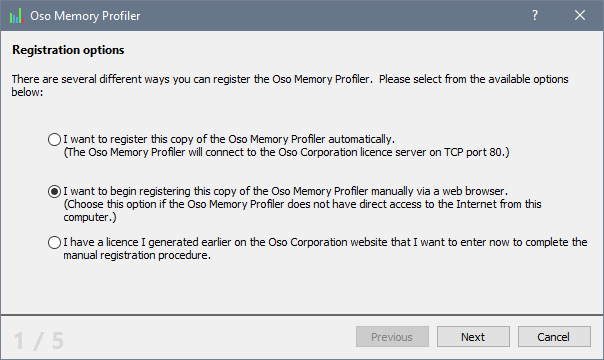
Just select the middle option, as shown above, and click Next to begin the registration process.
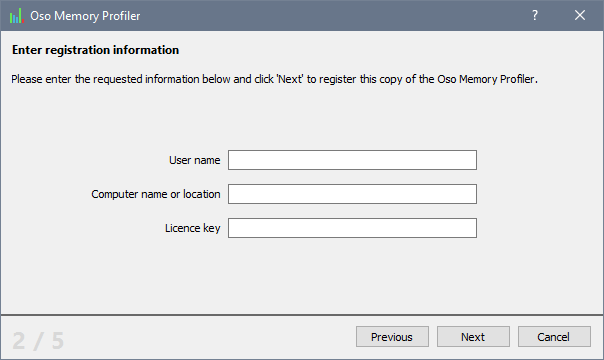
Enter your details into the spaces provided, and click Next.
The Oso Memory Profiler will generate an encrypted block of text that you will need to copy and paste into the licence generator on the Oso Corporation website:
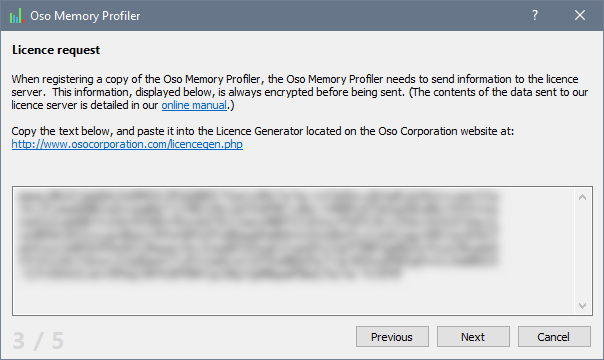
Paste the licence request text into the licence generator, and click the Submit button. If accepted, the licence generator will provide you with some licence text you can paste back into the Oso Memory Profiler.
You should note that if you are unable to complete the registration process in one session, you can complete the second half of this process later.
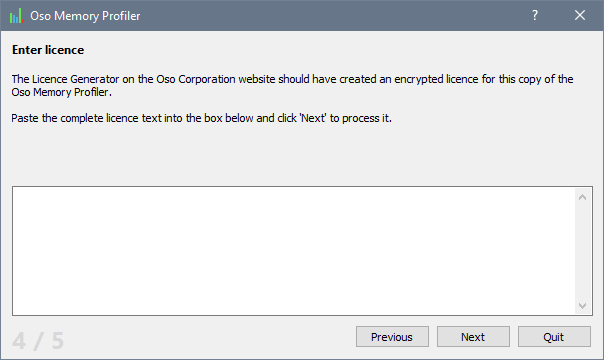
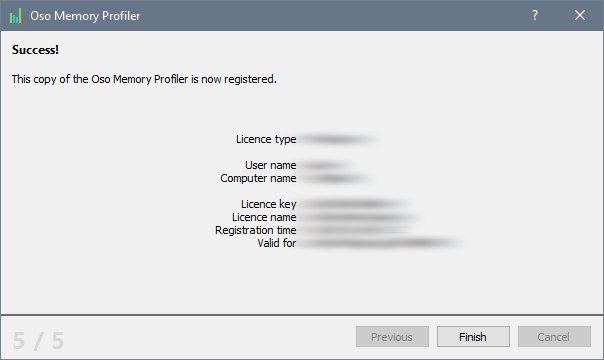
If the licence text from the server is accepted by the Oso Memory Profiler, the registration process will be completed, and your licence information will be displayed on the last page of the licensing dialog:
You can now use your copy of the Oso Memory Profiler without restriction.